How to make AI photos with Gemini, step by step
By the pixkoz team · Updated · 5 min read
You can make an AI photo with Gemini in about a minute: add your photo, paste a prompt that describes the look, and send. This guide walks through it on a phone and on a computer, then covers the part most people get stuck on: keeping your face the same.
It is written for Gemini as it works in October 2026. Google moves buttons around from time to time, but the steps stay the same.
What you need
- A Google account, signed in. Gemini needs one, and a free account is enough to start.
- The Gemini app on Android or iPhone, or gemini.google.com in a browser.
- A clear photo of yourself: face towards the camera, in daylight or bright indoor light, no sunglasses.
- A prompt: the text that describes the look. Write your own, or copy one from pixkoz's AI photo prompts, where every prompt shows a real before and after.
Step by step on a phone
- Find a look you like and tap Copy prompt. On pixkoz, Open in Gemini copies the prompt for you and opens Gemini.
- In the Gemini app, start a new chat.
- Tap the + button next to the message box and choose your photo from the gallery.
- Press and hold in the message box, tap Paste, and check that the whole prompt is there.
- Tap send. The picture takes from a few seconds to about a minute.
- Open the picture to save it or share it.
Step by step on a computer
- Go to gemini.google.com and sign in.
- Copy the prompt (on pixkoz: Copy prompt, or Open in Gemini).
- Click the + button by the message box to upload your photo, or drag the photo into the window.
- Paste the prompt into the box (Ctrl+V, or Cmd+V on a Mac) and press Enter.
- Open the result and download it at full size.
Gemini has no link that fills its message box from another website, so pasting is the one step you always do yourself. ChatGPT is different: see how to edit your photo with ChatGPT.
How to keep your face the same
The most common complaint about AI photos is 'it doesn't look like me'. Most of the time the photo is the cause, not the prompt.
- Use a sharp photo with your face large in the frame. A small face in a group shot or a far-off photo gives the AI little to keep.
- Face the camera. At a strong side angle, the AI has to guess the other half of your face.
- Take off sunglasses, and keep hands, hair and phones away from your face.
- Skip beauty filters on the photo you upload: the AI keeps the filter's smoothed skin and adds its own on top.
- Add one line to the prompt: 'Keep my face, skin tone and features exactly as in the photo.' Good prompts already have it.
- If the face drifts, write 'Keep my face exactly as in my photo and try again' in the same chat, or start a new chat and generate again.
Common problems and quick fixes
| What went wrong | What to try |
|---|---|
| Gemini answered in words, with no picture | Start the prompt with 'Edit my photo:' or 'Create an image:', and check that the photo really attached. |
| The face changed | Use a sharper, front-facing photo and add the keep-my-face line above. |
| The clothes or the background didn't change | Be more specific: name the outfit, the colours and the place. |
| Hands or fingers look wrong | Generate again, or ask for the hands to be out of the frame. |
| Words in the picture are misspelt | Leave text out of the prompt and add it later in a photo editor. |
| Gemini turned the request down | It refuses some requests, such as graphic ones. Describe a look, an outfit and a place rather than a person. |
| You reached a limit | Free accounts can make a limited number of images a day. Try again later. |
Is it free?
Making images in Gemini is free with a Google account, up to a daily limit that Google sets and changes from time to time. Paid Google AI plans raise the limits. The free prompts on pixkoz cost nothing to copy.
What happens to your photo
Your photo goes to Google, under Gemini's own terms; pixkoz never receives it when you use a prompt in Gemini. At the time of writing, Gemini's Keep Activity setting decides whether Google may use your chats and uploads to improve its services, with help from human reviewers. Turn it off, or use a temporary chat, if you'd rather it didn't. Google also marks the images Gemini makes as AI-generated with SynthID, an invisible watermark.
More on this in is it safe to upload my photo to AI apps?
Try it with these looks
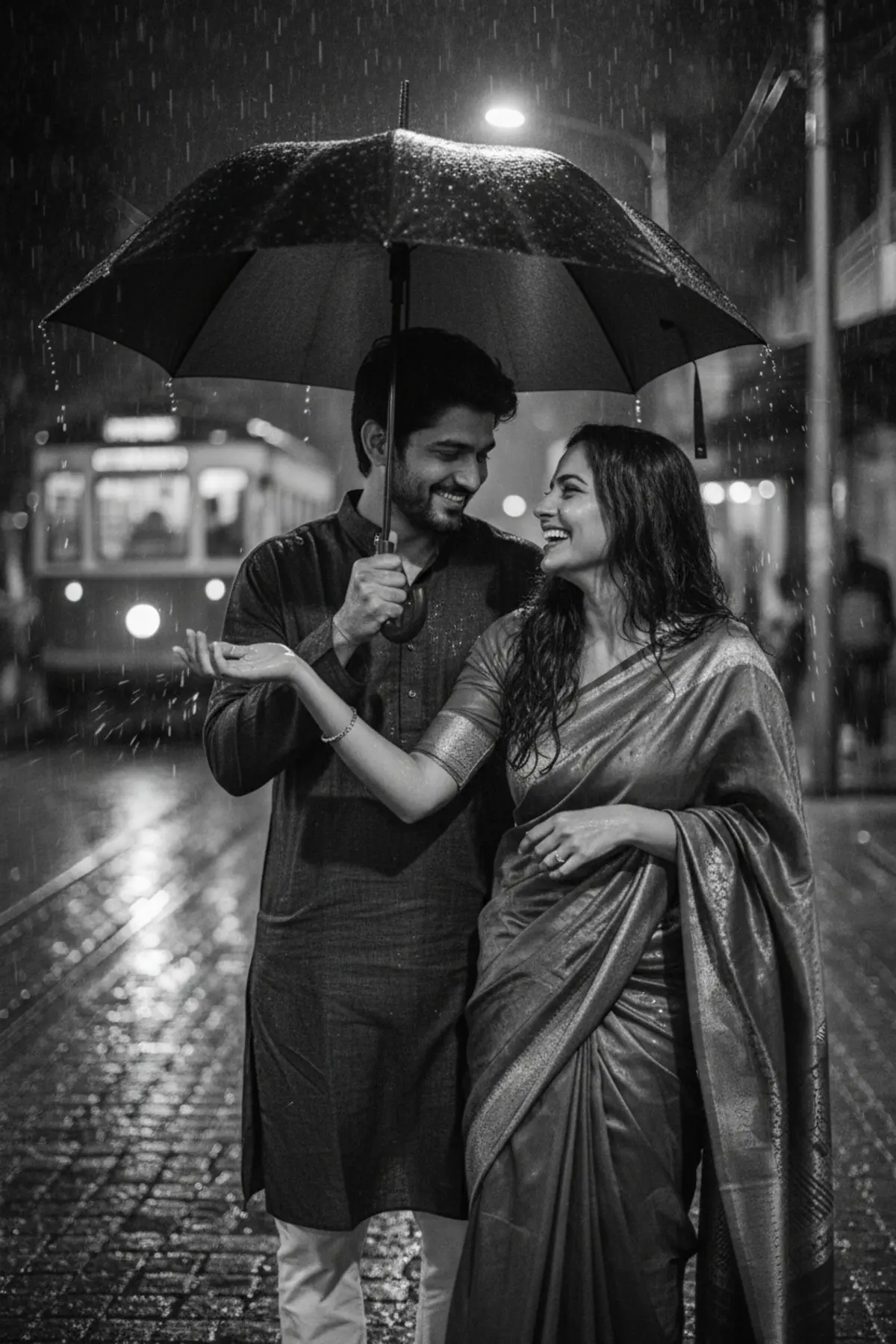
- Black and White Monsoon Umbrella Coupleby pixkoz.picks
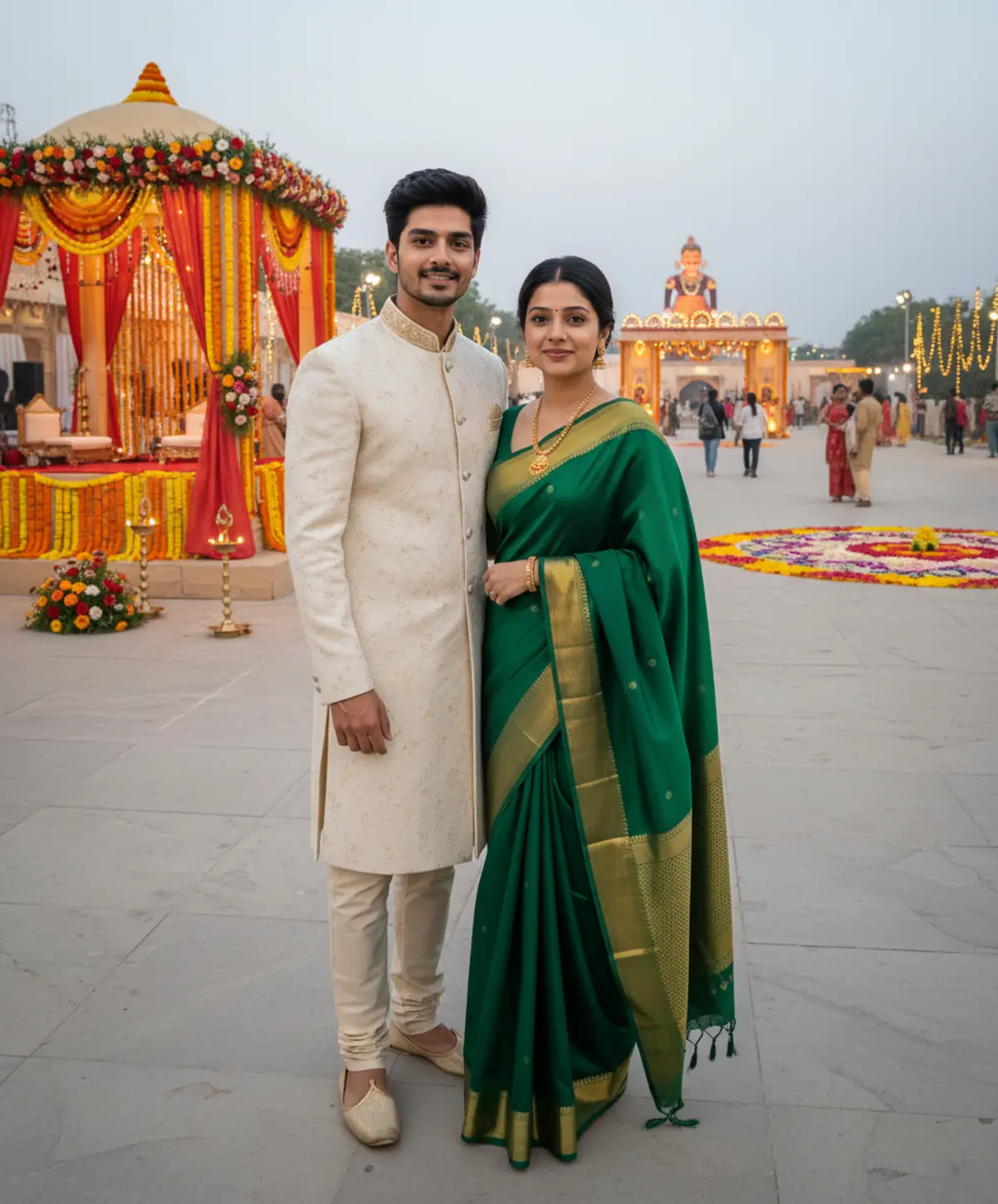
- 👑 Dussehra — Royal Couple Editorial 💚✨by Serene
- Pastel Pink Linen Saree Sunlit Wall Portraitby pixkoz.picks

- 1980s Kerala Kasavu Saree Portraitby pixkoz.picks

- Vasant Panchami — The Beauty of Spring 💛🌿 | Mustard Eleganceby Serene

- Chhath Puja — Devotion at Sunrise 🙏🌞 | Faith & Gratitudeby Serene

Questions people ask
Do I have to pay for Gemini to make AI photos?
No. A free Google account can make AI photos in Gemini, up to a daily limit.
What is Nano Banana?
The nickname of Google's image model inside Gemini. Newer versions, Nano Banana Pro and Nano Banana 2, came out in November 2025 and February 2026. When you make a picture in Gemini, this model draws it.
Can I use two photos, for a couple picture?
Yes. Add both photos to the same message and say in the prompt which person is which.
Why does my result look different from the example?
Every run makes a new picture, and your photo is not the creator's. Generate two or three times and keep the best one.
Can I post the result on Instagram or WhatsApp?
Yes, it is yours to share. Saying a picture is AI-made is good manners when it could pass for a real photo.
More guides
Gemini se AI photo kaise banaye (step by step)
Gemini se apni photo ko saree, couple ya festival look mein kaise badlein: copy-paste prompt, phone aur computer ke steps, aur chehra same rakhne ke tips.
How to write a great AI photo prompt
A simple six-part formula for AI photo prompts that keep your face and get the look right, with example prompts to copy and the mistakes to avoid.
Gemini vs ChatGPT for AI photo prompts
An honest side-by-side of Gemini and ChatGPT for AI photo prompts: getting started, keeping your face, words in pictures, free limits and privacy settings.