How to use ChatGPT to edit your photo with a prompt
By the pixkoz team · Updated · 4 min read
ChatGPT can take a photo of you and remake it in a new style: a saree portrait, a 1980s film still, a studio headshot. You attach the photo, give it a prompt that describes the look, and it draws a new picture. This guide shows the steps, the habits that make prompts work, and the setting worth checking first.
It is written for ChatGPT as it works in October 2026, after OpenAI's image update of April 2026. Buttons move from time to time; the steps stay the same.
What you need
- An OpenAI account. ChatGPT asks you to log in before you can upload a photo.
- The ChatGPT app, or chatgpt.com in a browser.
- A clear photo of yourself, face towards the camera, in good light.
- A prompt. Copy one from pixkoz's AI photo prompts, or write your own with this prompt-writing guide.
Step by step
- On a free look on pixkoz, tap Open in ChatGPT. ChatGPT opens with the prompt already in the message box, and pixkoz copies it too, in case it isn't.
- Or copy the prompt yourself, open ChatGPT, start a new chat and paste it.
- Tap the + button next to the message box and attach your photo.
- Read the prompt once. Change a colour or a place if you like.
- Send, and wait. Pictures take longer than text, often up to a minute.
- Open the result to download it.
A prompt that arrives in the box is never sent by itself: you attach the photo and press send yourself.
Fix the result in the same chat
ChatGPT remembers the picture it just made, so you can ask for changes in plain words instead of starting again:
- 'Same picture, but make the saree emerald green.'
- 'Keep everything, but make my face look exactly like my photo.'
- 'Make it a square picture for Instagram.'
- 'Remove the text from the picture.'
Small changes in the same chat usually keep the rest of the picture. If a result goes wrong twice in a row, start a new chat with your original photo.
Keeping your face the same
An image model redraws the whole picture, your face included, so the likeness depends on what it can see. What helps:
- One person, with the face large and sharp in the photo.
- Even light on your face: no strong shadow across it, no bright window behind you.
- A line in the prompt such as 'Preserve my exact facial features, skin tone and hairstyle.'
- If the face still drifts, say what changed: 'my nose and jaw look different, match my photo'.
Check your privacy setting first
Photos you upload to ChatGPT go to OpenAI under its own terms; pixkoz never receives them when you use a prompt there. At the time of writing, ChatGPT's settings have a Data Controls section with a switch called Improve the model for everyone. When it is on, your chats, photos included, may be used to train OpenAI's models. Turn it off if you'd rather they weren't.
A Temporary Chat stays out of your history and, OpenAI says, is not used for training. OpenAI also adds Content Credentials (C2PA) to the pictures ChatGPT makes, which mark them as AI-generated. More in is it safe to upload my photo to AI apps?
Is it free?
Free ChatGPT accounts can make a limited number of pictures; paid plans allow more. OpenAI sets and changes the limits, and ChatGPT tells you when you reach one.
Try it with these looks
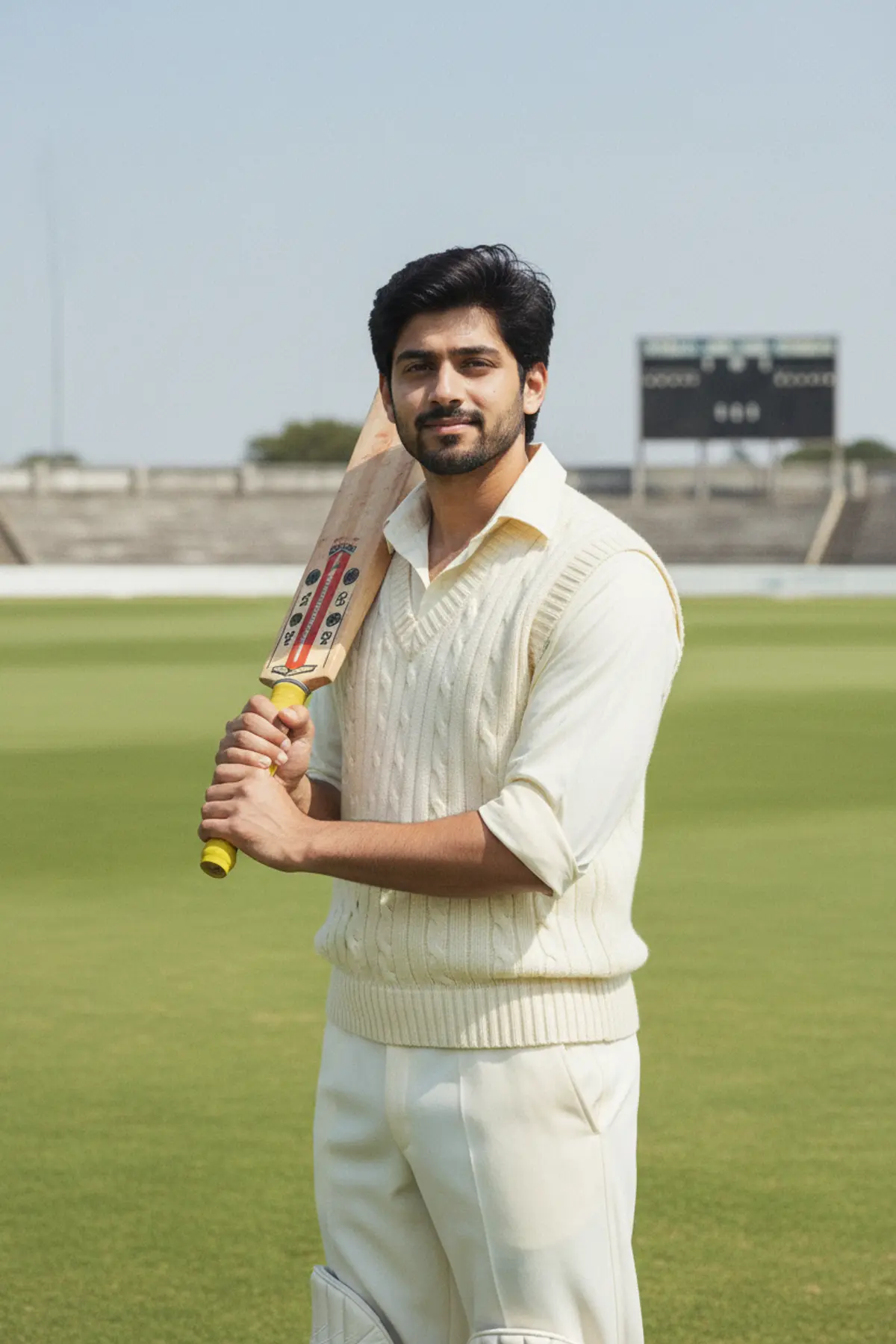
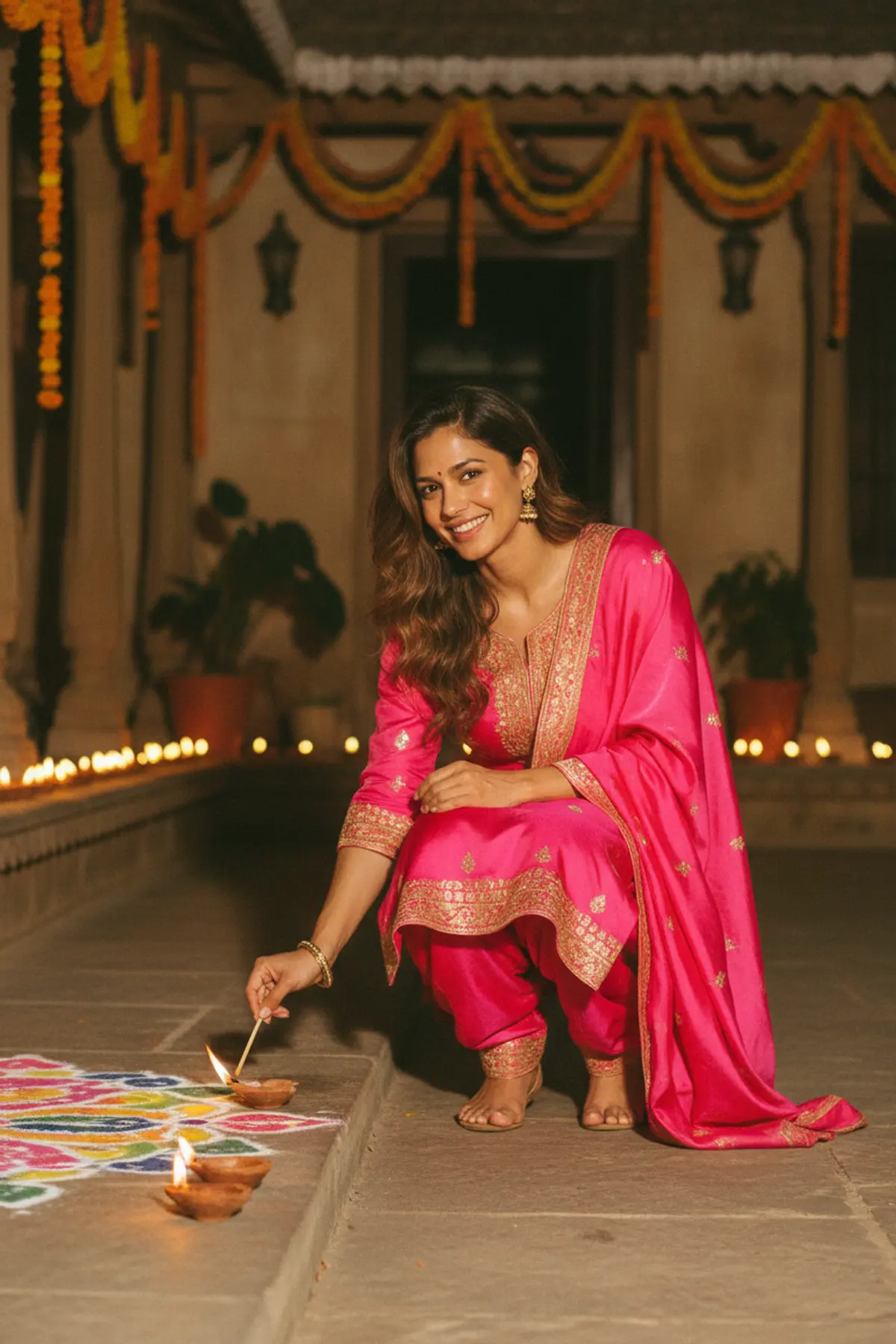
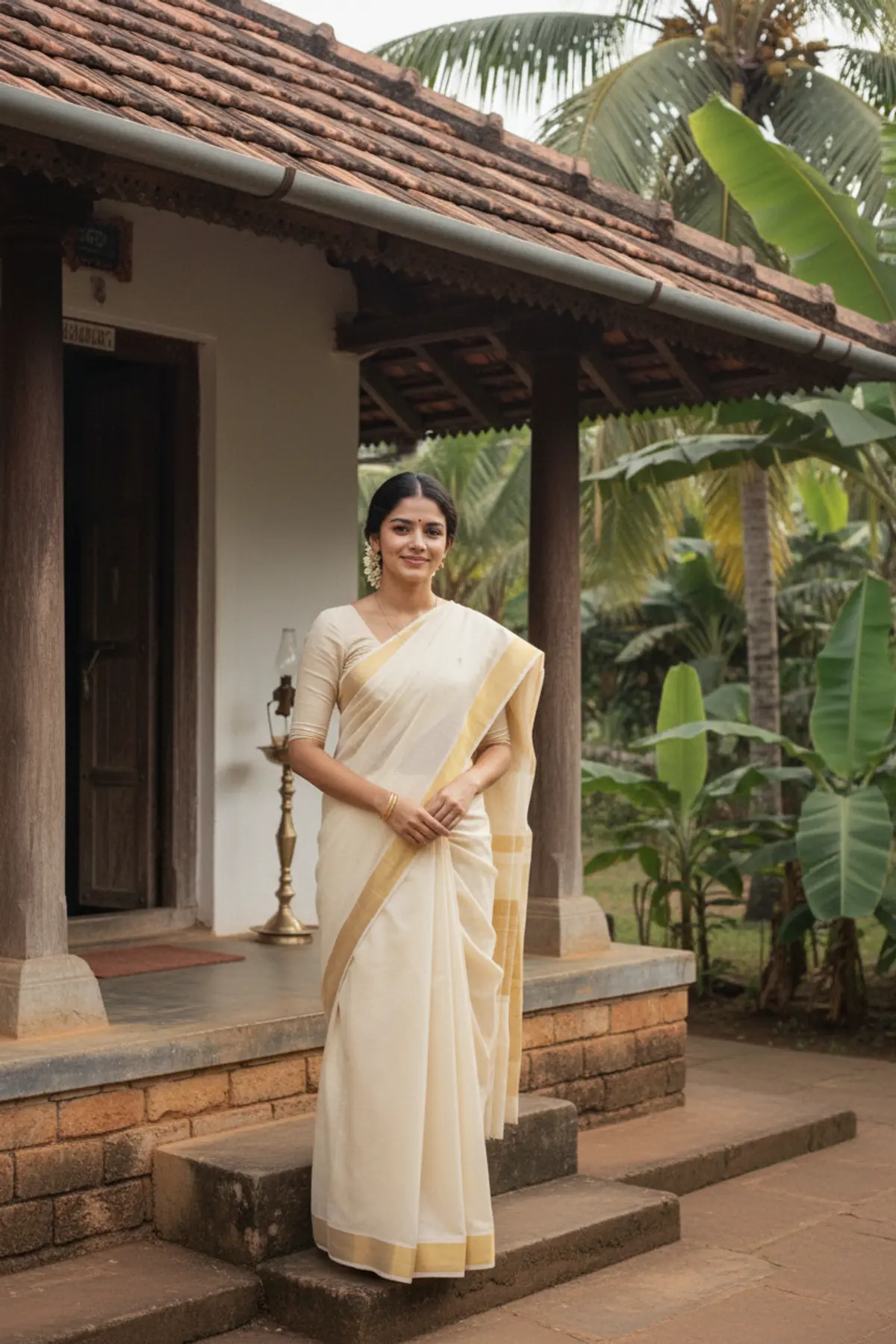
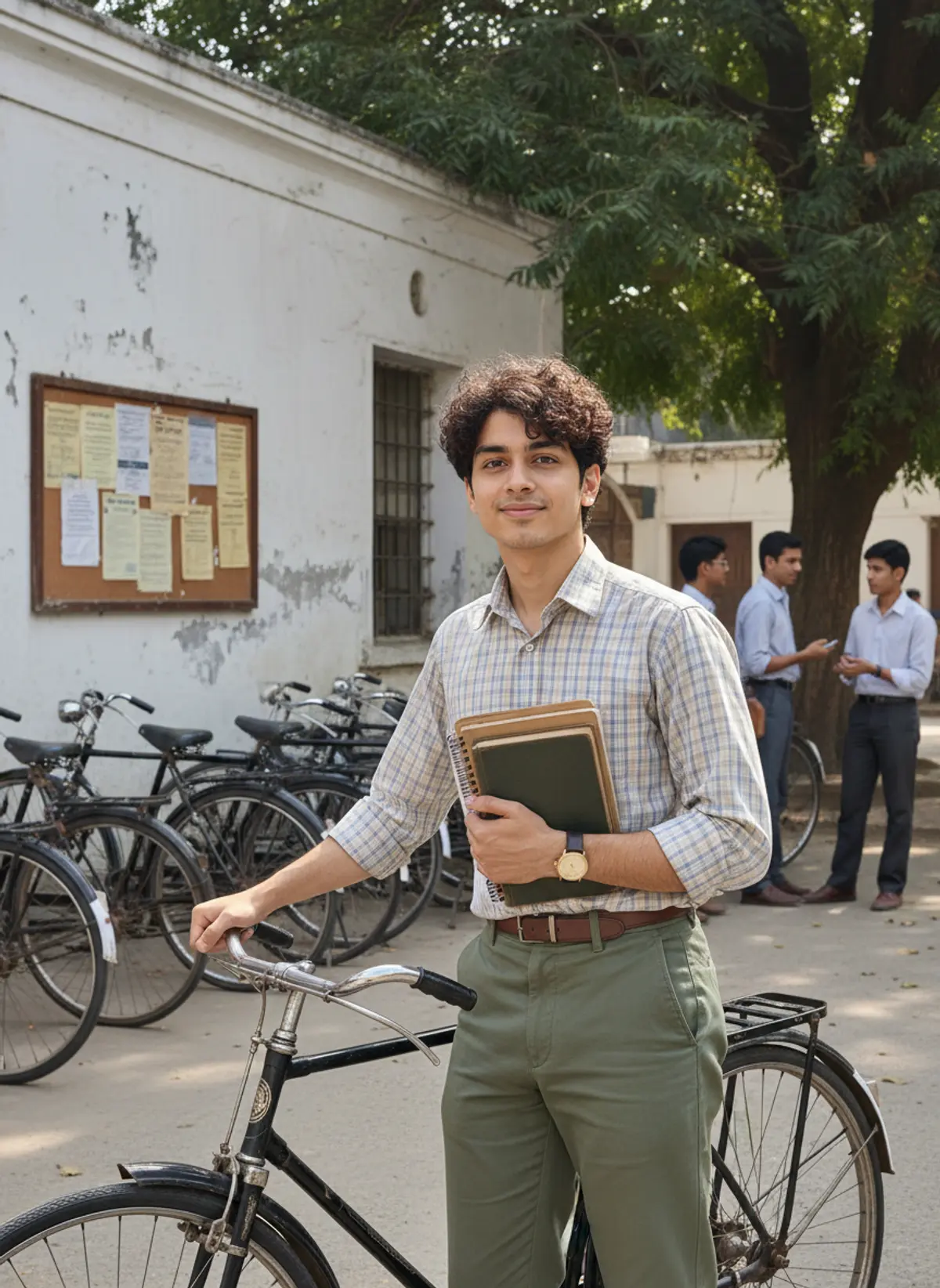
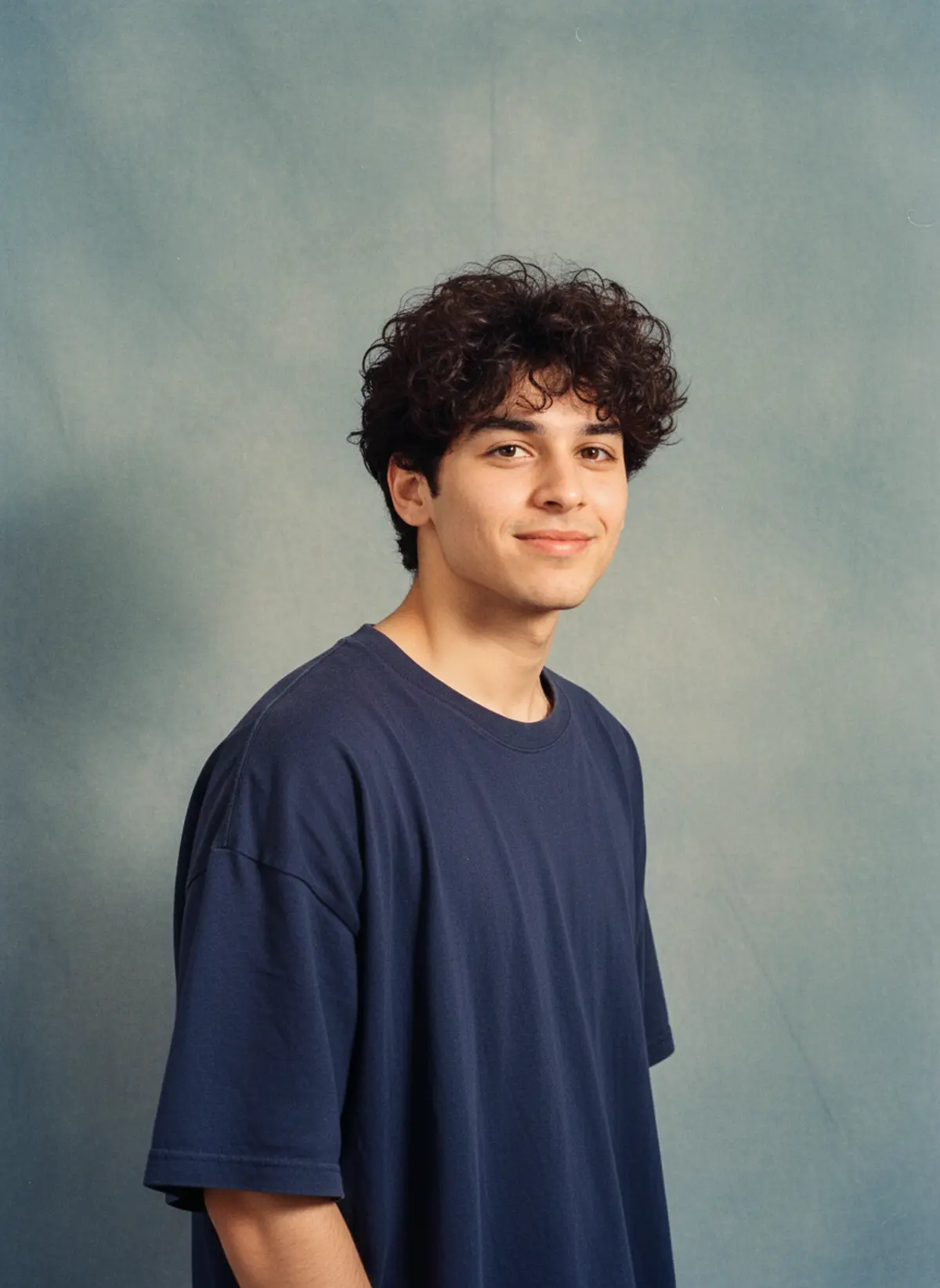
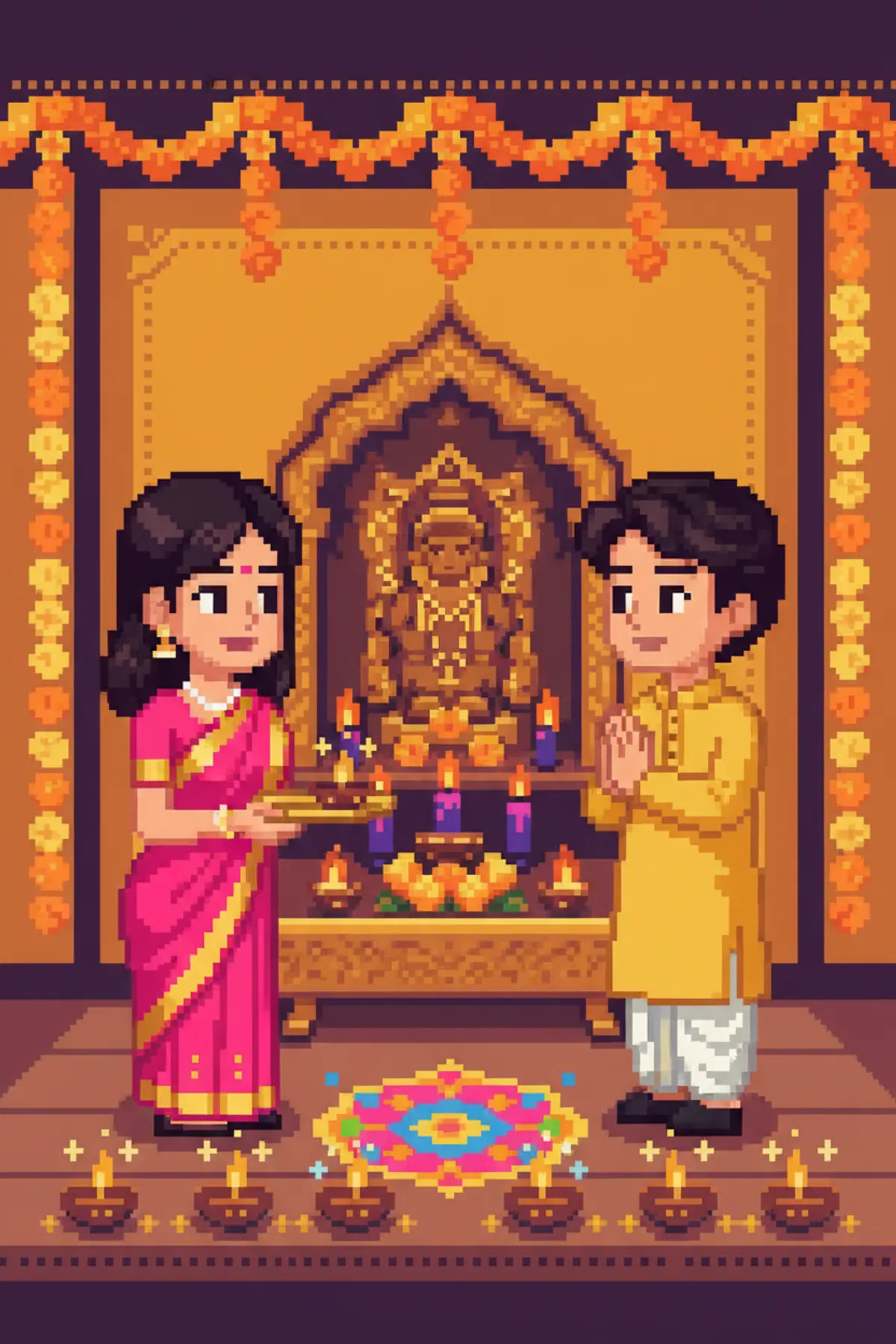
Questions people ask
Why does ChatGPT refuse to edit my photo?
It turns down some requests under OpenAI's rules, for example anything sexual or graphic. If an ordinary style prompt is refused, rephrase it to describe the look, the clothes and the setting, and try again.
Do the same prompts work in ChatGPT and Gemini?
Yes. Prompts on pixkoz are plain text and work in both; the results differ from app to app. See Gemini vs ChatGPT for AI photo prompts.
What is a 'ChatGPT photo editing prompt'?
A ready-made prompt that describes a look, which you paste into ChatGPT with your own photo. The free prompts on pixkoz are exactly that, each with a before and after.
Can I fix an old or blurry photo?
Yes, ask ChatGPT to restore and colour an old photo. A sharper original always keeps the face better, so compare the result with the photo before you share it.
More guides
How to make AI photos with Gemini, step by step
Turn your own photo into an AI photo with Gemini: what you need, the steps on a phone and a computer, how to keep your face the same, and quick fixes.
Gemini vs ChatGPT for AI photo prompts
An honest side-by-side of Gemini and ChatGPT for AI photo prompts: getting started, keeping your face, words in pictures, free limits and privacy settings.
How to write a great AI photo prompt
A simple six-part formula for AI photo prompts that keep your face and get the look right, with example prompts to copy and the mistakes to avoid.